 COME
COMEPrepare a useful COME Customer Center request
Describe the exact issue, time and action, and include only the minimum non-sensitive context needed.
Work through this situation
A request saying not working cannot distinguish a browser error, app loading issue or account record question. State the stage and preserve the exact wording. Never provide a password, OTP or payment PIN.
What to check and why
Use a short sequence in the request: what you intended, what you selected, what happened and when. Include the exact error text when there is one. If the problem concerns a specific record, add only the legitimate reference needed to distinguish it. A description of the steps is often more useful than several screenshots of unrelated screens.
Select the topic matching the stage. Browser transfer, Android installation, app loading and account processing are separate events. For screenshots, hide passwords, codes, full financial identifiers and unrelated notifications. Keep any existing ticket context with the request rather than starting several parallel cases that omit one another's history.
Recognise the relevant screen
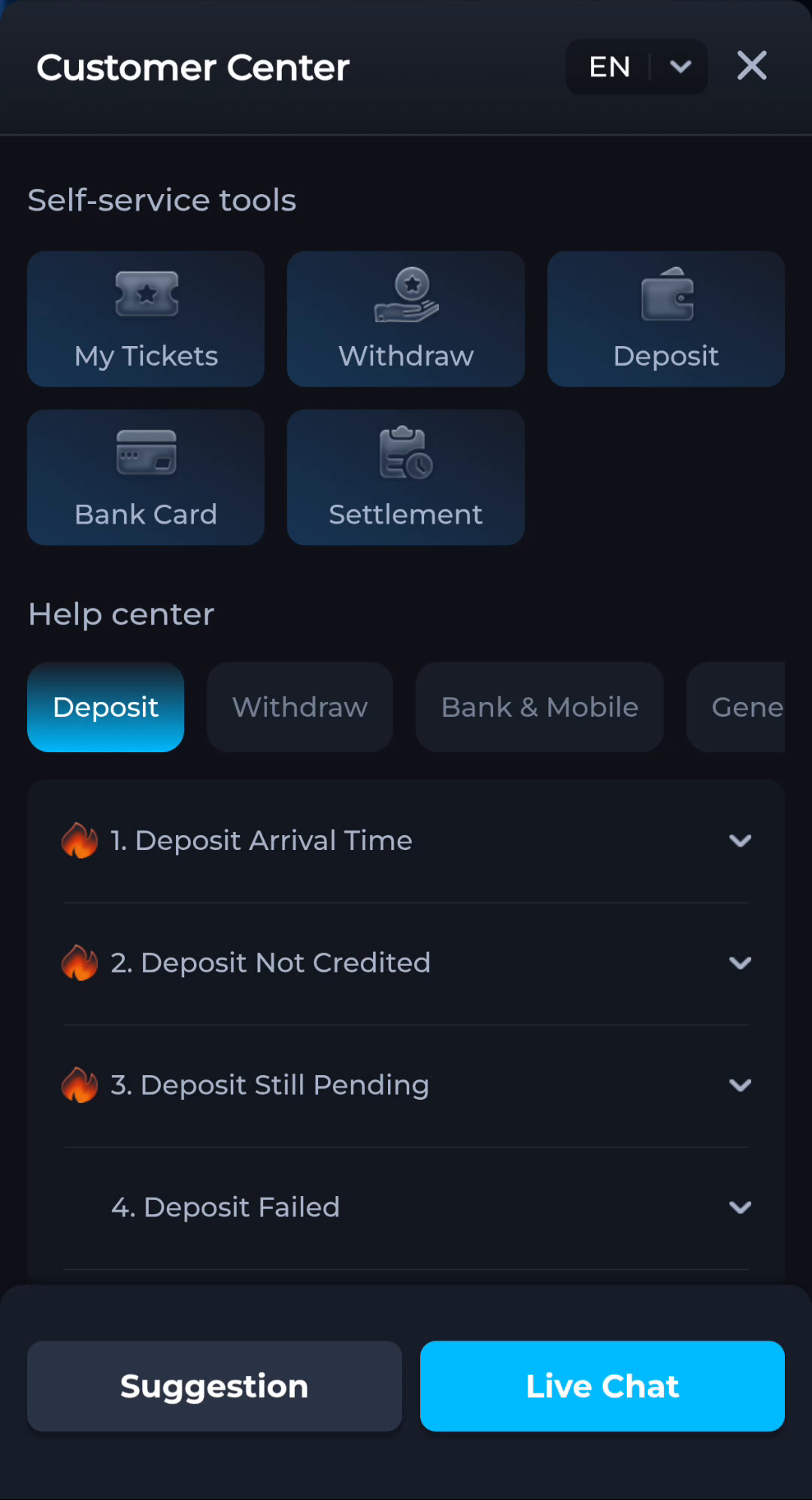
Match help to the task
The account menu and Customer Center provide different routes for preferences, records and assistance. A help-category answer explains a topic, while an account-specific issue needs the relevant service context. Read the visible wording on your own screen because layouts can change. This website provides explanations and navigation; it cannot complete an account action or alter a service record.
What a completed answer looks like
The request can be understood without access to private credentials or unrelated personal information.
If the screen still does not answer the question, keep the exact wording and use the matching in-app help context.
Choose another specific COME guide